CPCB’s user interface
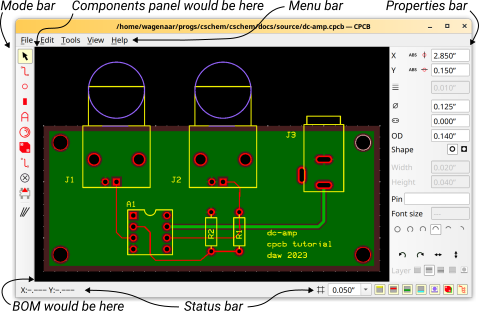
CPCB comprises several toolbars arranged around the PCB being edited. These toolbars are:
- Mode bar
CPCB makes heavy use of “editing modes.” At any time, CPCB is in one of several modes, and a toolbar on the left of the main window is used to switch between modes and to indicate the current mode.
- Properties bar
A toolbar on the right shows the various editable properties of selected objects or objects to be placed.
- Status bar
A small bar at the bottom of the window shows cursor position, grid settings, and which features are currently being shown.
- Menu bar
Along the top of the window a standard menu bar is shown.
Two other panels are not shown by default but may be opened through the “View” menu:
Components panel
Opened automatically when CPCB is used to edit a PCB design that is linked to a CSchem schematic, this shows all the not-yet-placed components. You can drag component footprints in from a Filer window [1] into this panel, or from this panel onto the main PCB.
Bill of materials (BOM)
This panel can be used to associate part numbers and catalog numbers with components in the layout.
Editing modes
CPCB uses different “modes” for placing, moving, and modifying holes, traces, and other objects. Because changing modes is such a frequent task, keyboard shortcuts are available for each of the modes. The modes are (from top to bottom in the “mode bar”):
Selection mode (F1)
This is a highly multifunctional mode:
Objects can be selected by clicking on them or dragging a rectangle over them.
Selected objects can be modified using the Properties bar.
Objects can be moved by dragging with the mouse.
Objects can be deleted or placed on a clipboard using standard cut-and-paste operations.
Selected objects can be grouped into a component (“Control”+“G”) and existing components can be ungrouped into separate objects (“Control”+“Shift”+“G”).
In addition, double-clicking on different types of objects has specific effects in this mode:
Double-clicking on a group “enters” the group so its contents can be edited in-place. (Double-clicking on blank space “exits” a group that was entered in this way.)
Double-clicking on a pad or hole allows the name or number of that pad or hole to be changed [2].
Double-clicking on a piece of text allows the text to be edited.
Trace mode (F2)
In this mode, new traces are placed on the PCB by clicking with the mouse. The Properties bar can be used to determine the width of the traces as well as which layer they will be placed on. Traces can be placed on copper and silkscreen layers alike.
Plated hole mode (F3)
In this mode, mouse clicks place plated holes on the board. Holes always connect the top and bottom layers of the PCB. The Properties bar can be used to determine the hole diameter and the diameter of the surrounding pad. Holes can have either round or rectangular pads. This mode can also be used to create plated slots, by using the “Slot length” box in the Properties bar (below). Commonly, holes are part of components, in which case the “Pin” box in the Properties bar shows the pin name or number for the hole. This mode should not be used to create vias; see below.
Pad mode (F4)
In this mode, copper pads are placed on the PCB. Pads are generally used as part of surface-mount components, in which case the “Pin” box in the Properties bar shows the pin name or number for the pad. Pads are normally placed only on copper layers, but CPCB doesn’t stop you if you want to place a pad on the silkscreen layer.
Text mode (F5)
In this mode, clicking on the board opens a small dialog window in which you type the text to be placed. Text is normally placed on the silkscreen layer, but may be placed on copper layers as well.
Arc mode (F6)
In this mode, circles or arcs are placed, typically on the silkscreen mode as part of component outline drawings.
Filled plane mode (F7)
Filled planes are filled areas on either copper layer. In filled plane mode, new planes can be created, existing planes can be edited, and holes and pads can be connected or disconnected from filled planes by double clicking. Use the Layer selector in the Properties bar (just above the Layer visibility toggles in the status bar) to determine the layer for a filled plane or filled plane connection. Working with filled planes is explained in more detail on a separate page.
Pickup mode (F8)
In this mode, clicking on an existing trace picks up that trace so that you can conveniently reconnect it to another point on the PCB.
Nonplated hole mode (F9)
Nonplated holes are holes without copper plating. This mode can also be used to create straight milled slots by using the “Slot length” property.
PNP mode (F10)
In pick-and-place mode, you can mark up your layout to indicate the orientation of parts for assembly. This has no effect on the layout itself, but only on the “pick-and-place” files produced during Gerber export. Make the little blue triangles point in the direction that is “up” in the datasheet for your part, and PCB assemblers will likely get the hint. When in doubt, choose an assembler that provides a preview before committing to a purchase. That way, you can go back to your layout and correct any mistakes before they get cast into hardware.
The Mode bar contains one additional button that does not correspond to an editing mode:
Angle constraint (F12)
Use this to toggle between placing traces with arbitrary angles and placing traces that are constrained to be either horizontal, vertical, or at 45° to the canonical axes.
The Properties bar
The properties bar is used to specify properties for new items to be placed on the board. In “Edit mode,” the properties bar reflects the properties of currently selected items, and can be used to modify those properties [3].
Many items in the Properties bar may speak for themselves, but here is a list with a few notes. From top to bottom:
- X
The x-coordinate of the selected object or objects. You can type in the box to move the selection to a new location.
To the left of the box are an “Abs/Inc” toggle and an “Anchor” toggle:
The “Abs/Inc” toggle may be used to switch between absolute coordinates (from the left edge of the board) to “incremental” coordinates relative to a feature on the board.
By default, the coordinates of the “principal point” of an object are shown and edited in the X box. For a hole or a pad, that is the center of that hole or pad, for text that is the left edge of the text, for a component that is the center of its lowest-numbered pin, etc. By clicking on the “Anchor” toggle, you can instead display and edit the left edge, geometric center, or right edge of a selection.
- Y
The y-coordinate equivalent of previous item. When multiple objects are selected, the topmost y-coordinate is shown.
The “Abs/Inc” and “Anchor” toggles for Y are independent of those for X.
Line width
This item represents the width of traces and arcs.
Diameter
The diameter of (plated and nonplated) holes as well as arcs.
Slot length
The extra length of a milled slot. (The full length of a slot is the stated “Slot length” plus the diameter.) Applies to both plated and nonplated holes.
OD
Outer diameter of the round pad surrounding a plated hole, or length of the square pad surrounding such a hole. If the hole is in fact a slot, the pad is expanded along with the hole.
Shape
Selects whether the pad surrounding a hole is round or square. Also here: whether the hole is a via or a normal through-hole.
Width
The width of an SMT pad (along the x-axis).
Height
The height of an SMT pad (along the y-axis).
Ref. or Pin or Text
Multifunctional item that shows the “Reference” ID for a component; the “Pin number” for a hole or pad; or the contents of a text object.
Font size
Font size for text objects.
Arc style
Selector for different kinds of arcs.


Wherever dimensions appear in the Properties bar, simple arithmetic is accepted. Thus you can type things like “0.3 in + 2*0.7 cm”. CPCB understands “mm” and “cm” as metric units. It also understands “in,” “inch”, and “”” (double quote) to mean inches. If you leave out a unit, the units of the current grid determine how your input is interpreted.
Rotating, flipping, and moving between layers

 At the very bottom of the
Properties bar, there are two more rows of buttons: The first allows
rotating and flipping of selected objects in Select mode. It doubles
to determine the orientation of newly created objects in Text and Arc
modes. The second row determines on what layer newly created objects
appear and can also be used to move objects between layers.
At the very bottom of the
Properties bar, there are two more rows of buttons: The first allows
rotating and flipping of selected objects in Select mode. It doubles
to determine the orientation of newly created objects in Text and Arc
modes. The second row determines on what layer newly created objects
appear and can also be used to move objects between layers.
Creating vias
 Vias are plated holes that are covered by solder mask
instead of being exposed and tinned. They serve to connect between
layers of a PCB rather than to insert components. You can turn a
normal hole into a via or vice versa by clicking the “Via” button in
the “Shape” section of the Properties bar. Vias are automatically
created to preserve connection when you move one segment of a
multi-segment trace between copper layers. Vias are represented as
red-green dappled plated holes. The initial size of newly created vias
is algorithmically determined by the width of the trace, but may be
adjusted using the Properties bar.
Vias are plated holes that are covered by solder mask
instead of being exposed and tinned. They serve to connect between
layers of a PCB rather than to insert components. You can turn a
normal hole into a via or vice versa by clicking the “Via” button in
the “Shape” section of the Properties bar. Vias are automatically
created to preserve connection when you move one segment of a
multi-segment trace between copper layers. Vias are represented as
red-green dappled plated holes. The initial size of newly created vias
is algorithmically determined by the width of the trace, but may be
adjusted using the Properties bar.
The Status bar
The status bar displays the coordinates of the cursor and shows the identity of holes, pads, and components that you hover over. It is also home to a popup menu for selecting grid spacing. (Several common choices prepopulate the menu, and you can define your own custom grid spacing in either inches or millimeters simply by typing in any line.)
A group of icons on the right of the Status bar serves as indicators and toggles for visibility of (from left to right): the top silkscreen layer; the top copper layer; the bottom copper layer; the bottom silkscreen layer; the panel preview layer; filled planes; and nets. The last three deserve further explanation:
The “Panel” layer is used to preview what a front panel for your project could look like. Not all connectors included as components with CPCB currently include a rendering of panel cutouts. Those that do include a horizontal line that marks the top of the board in addition to the actual cutouts. Those horizontal lines should all be aligned on y = 0 in the layout.
Filled planes may be placed on either top or bottom copper layers. They are only visible when both the layer on which they occur is visible, and the “filled planes visibility” toggle is on.
“Nets” are collections of traces, holes, and pads that are electrically connected. When nets are visible, these collections are highlighted when the mouse hovers over any of their members. Additionally, if your PCB design is linked to a CSchem schematic, holes or pads that should be part of a net but are not yet connected are highlighted in blue, and connected holes or pads that should not in fact be part of a net are highlighted in pink. The message area on the left of the status bar may also show pertinent information about nets.
Components panel
When a PCB layout is linked to a CSchem schematic, one additional user interface component is shown alongside the PCB: A list of all the components of the schematic that have not yet been placed on the PCB. The function of this panel is explained under Using the components panel.